 OrangeStock
THE PARTS GUIDE
Part page details
Know what you have, what it costs, and where it’s used.
1Identify your part
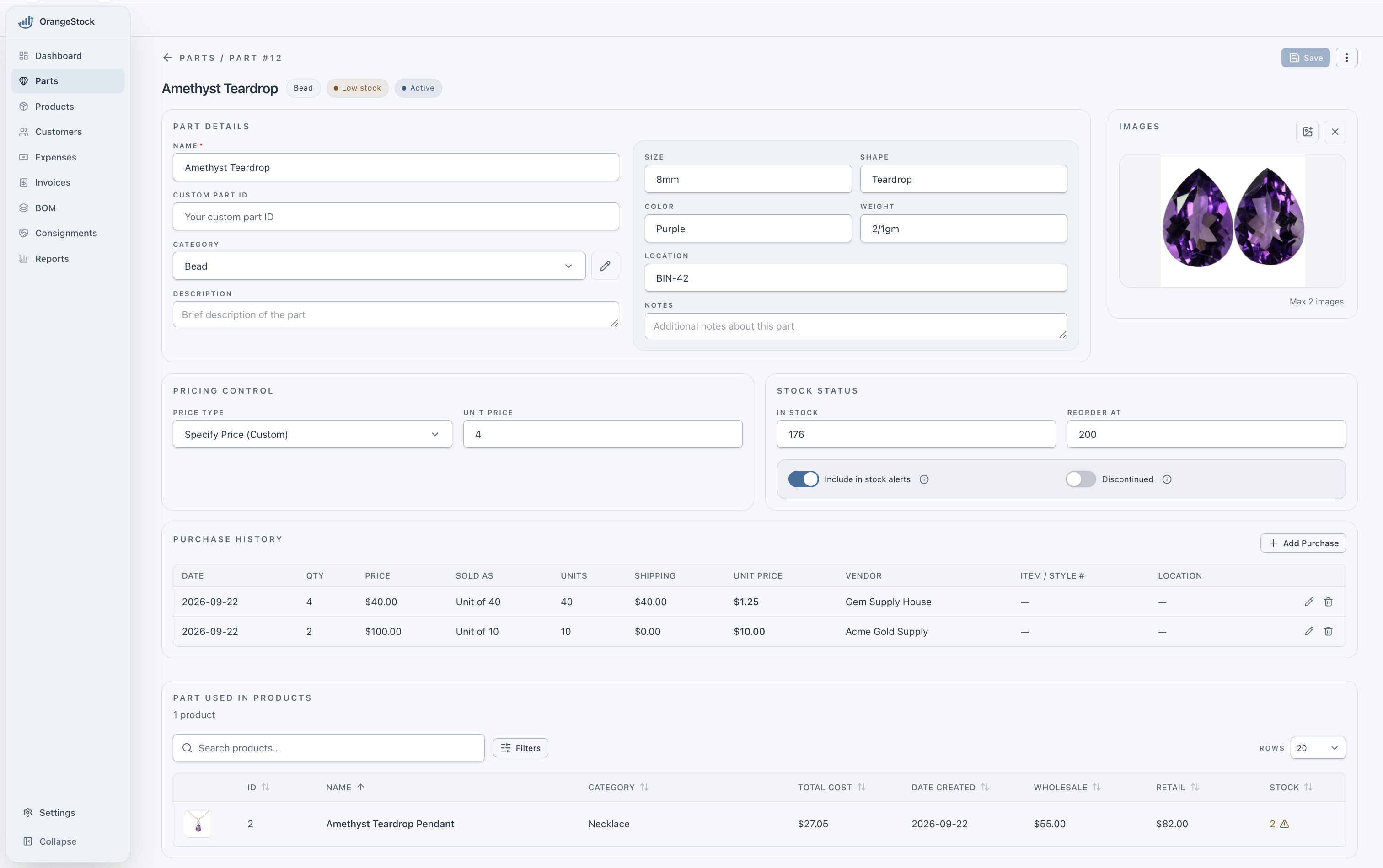
Open a part from Parts to see its details. Give it a name and category, then add a custom part ID, description, size, shape, color, weight, location, and notes as needed. Add up to two images to help identify it.
Choose Save at the top of the page after changing part details, pricing, or stock settings.
2Choose a price type
Price Type sets the cost of one unit of this part. That unit price feeds into the material cost of products that use it.
| Price Type | How it works |
|---|---|
| Weighted Average | Total purchase cost / Total units purchasedAdd up the cost of all purchases, including shipping, then divide by the total number of units purchased. Purchases with more units have a greater effect on the average. |
| Last | Uses the unit price from your most recent purchase as the material price. |
| Lowest | Uses the lowest purchase unit price among purchases with units greater than zero. |
| Specify Price (Custom) | Enter your own Unit Price. It stays fixed when purchases change, until you edit it or choose another price type. |
- Purchase 1: 160 units at $1.25 each — $200 total.
- Purchase 2: 20 units at $10.00 each — $200 total.
Together, that’s 180 units with a total cost of $400, including shipping.
- Weighted Average
$400 / 180 ≈ $2.22 per unitDivide the combined cost by the combined number of units.
- Lowest
- $1.25 per unit — the lower of the two purchase unit prices.
- Custom price in the screenshot
- $4.00 per unit — entered manually, independent of these purchases.
Automatic prices recalculate when purchases are added, edited, or deleted. With no purchases, they calculate to $0. Weighted Average uses purchase history, not just the units still in stock.
3Manage stock & alerts
- In stock
- The number of individual units currently on hand. Purchases add units, while using parts in production reduces stock. You can correct this number after a stock count.
- Reorder at
- Your low-stock threshold. Stock at or below this number is low, and zero is out of stock. In the screenshot, 176 in stock ≤ 200 reorder at, so the part is marked Low stock.
- Include in stock alerts
- Turn this on to include the part in stock monitoring and low/out-of-stock alerts on the dashboard. Turn it off for one-of-a-kind materials you will not restock. The stock quantity is still recorded.
- Discontinued
- Turn this on when you retire a part or stop sourcing it. Its status becomes Discontinued, and it is excluded from the dashboard’s active inventory and stock monitoring. Its details, purchases, and product links remain available for reference.
4Add a purchase
In Purchase History, choose Add Purchase. Save a new part first to enable purchases.
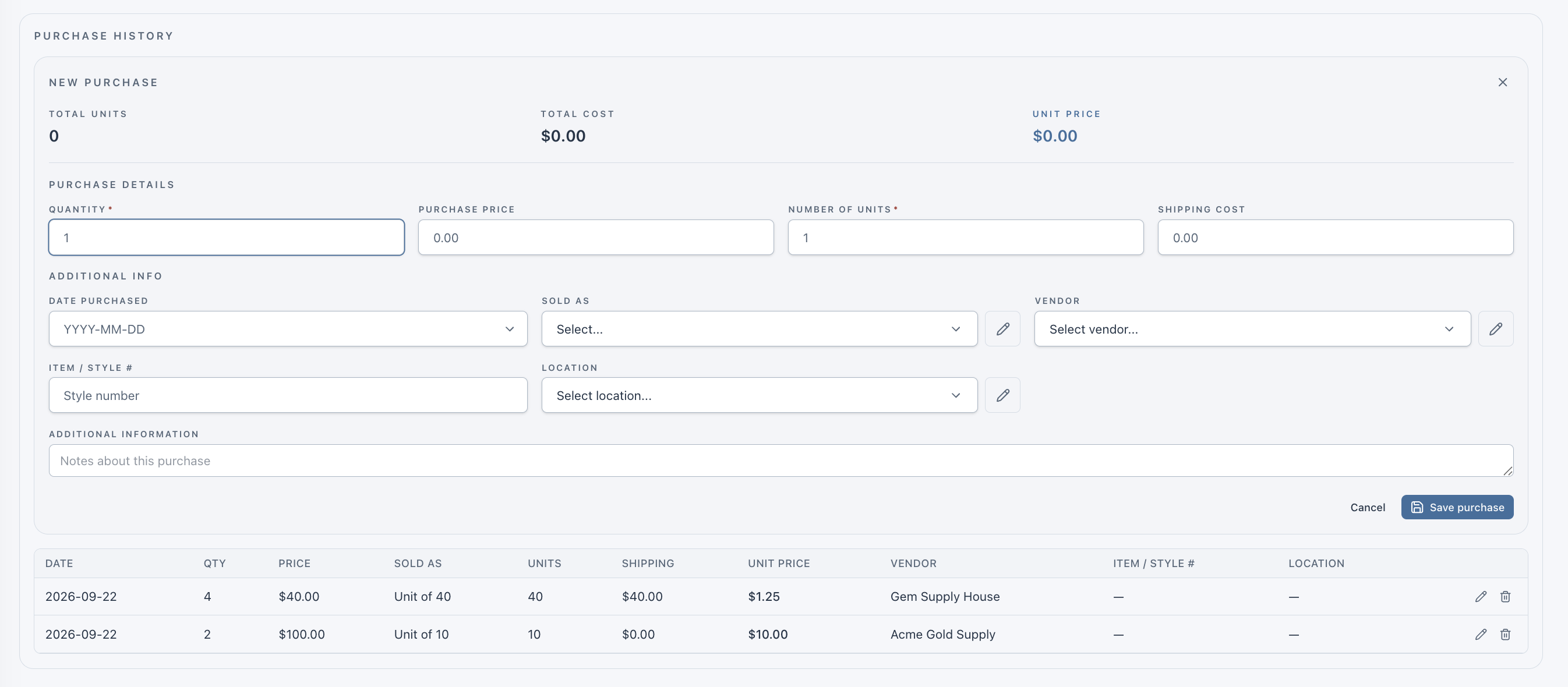
- Quantity
- How many packs, strands, or items you bought.
- Purchase price
- The price of one pack, strand, or item.
- Number of units
- Individual units in each pack. Use 1 when buying individual pieces. Quantity and Number of units must both be greater than zero.
- Shipping cost
- Total shipping for this purchase, added once.
HOW UNIT PRICE IS CALCULATED
- Total units
Quantity × Number of unitsMultiply the number of packs by the units in each pack.
- Total cost
(Quantity × Purchase price) + Shipping costMultiply the number of packs by the price per pack, then add shipping once.
- Unit price
Total cost / Total unitsDivide the total cost by the total number of units.
Example: Four packs of 40 units give you 160 units. At $40 per pack, plus $40 shipping, the total cost is $200.
$200 / 160 = $1.25 per unit
Divide $200 by 160 units to get a unit price of $1.25.
Add the purchase date, Sold as label, vendor, item/style number, location, and notes for reference. Sold as describes the packaging. Enter the actual units per pack in Number of units.
Check the live totals at the top, then choose Save purchase. The purchased units are added to In stock, and the part’s price is refreshed according to its Price Type.
5Edit or delete a purchase
Edit: Select the pencil on a purchase row, change the details, then choose Update purchase. Changes to quantity or units adjust stock by the difference. Price or shipping changes update the purchase unit price.
Delete: Select the trash icon and confirm. The record is removed and its units are subtracted from stock, down to a minimum of zero. Deletion cannot be undone from the form.
Both actions recalculate the part’s automatic price and related product costs. A custom unit price stays unchanged.
6See where a part is used
Part Used In Products lists the products that include this part. Use it to see which designs may be affected by a cost change or a material you can no longer source.
Search or filter to find a product, click a column heading to sort, and use Rows to change the page size. Select a product row to open its details and review its materials.
Total Cost, Wholesale, Retail, and Stock belong to the finished product. Stock here is the number of finished products on hand, not the number of parts used.