 OrangeStock
THE PRODUCTS GUIDE
Product page details
Bring your materials, time, and selling prices together.
1Set up your product
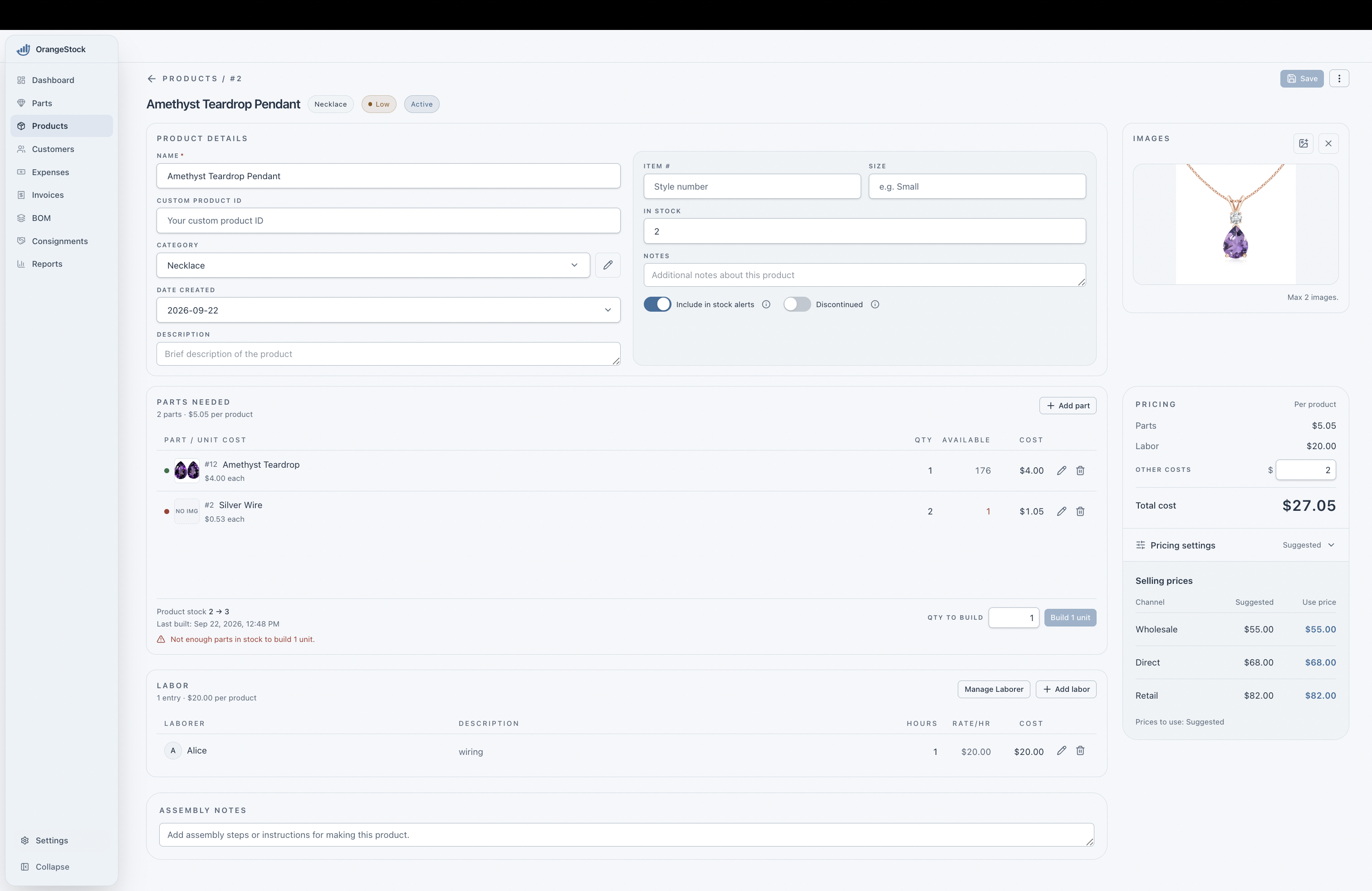
Open a product from Products. Enter its name, category, creation date, and description. Add a custom product ID, item number, size, notes, and up to two images to help identify it.
- In stock
- The number of finished products on hand. Use Build in Parts Needed when making more, so the materials used are deducted too.
- Stock alerts
- Keep Include in stock alerts on for products you plan to restock. Turn it off for one-of-a-kind pieces.
- Discontinued
- Mark designs you no longer offer as Discontinued. Their records stay available, and they are excluded from the dashboard’s active inventory and stock monitoring.
- Assembly notes
- Record the steps for making one product, so you can follow the same process next time.
Choose Save after editing the product form or pricing settings. Save a new product before adding parts and labor.
2Choose global pricing defaults
Go to Settings → Preferences → Pricing defaults to set the starting values for new products.
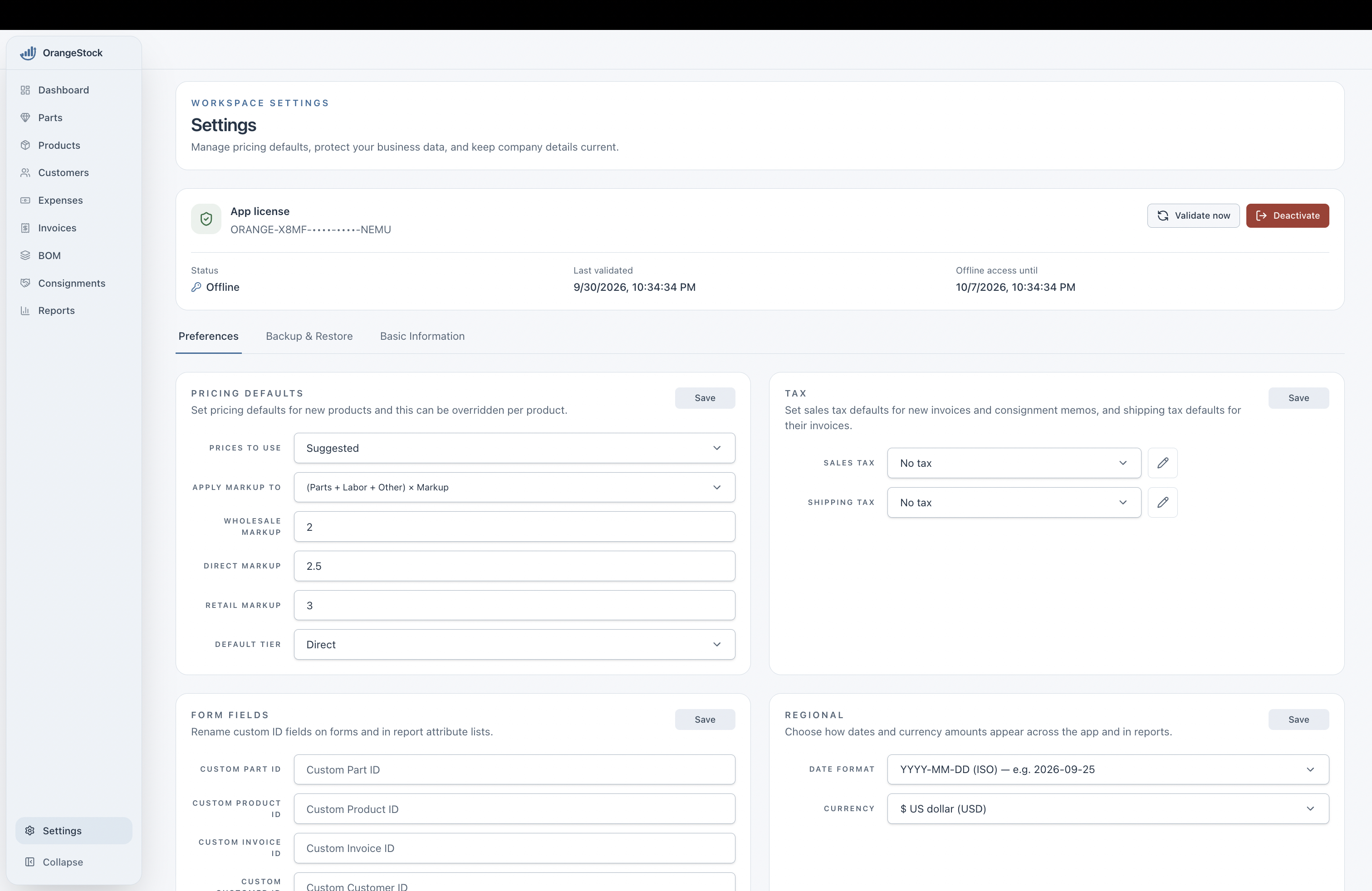
- Choose Suggested or Specify, the markup formula, and the Wholesale, Direct, and Retail multipliers.
- Default tier sets the starting price tier for new customers.
- Choose Save in the Pricing defaults section.
New products start with these pricing defaults. Existing products keep their settings, and you can adjust pricing on each product’s details page.
3Set your product prices
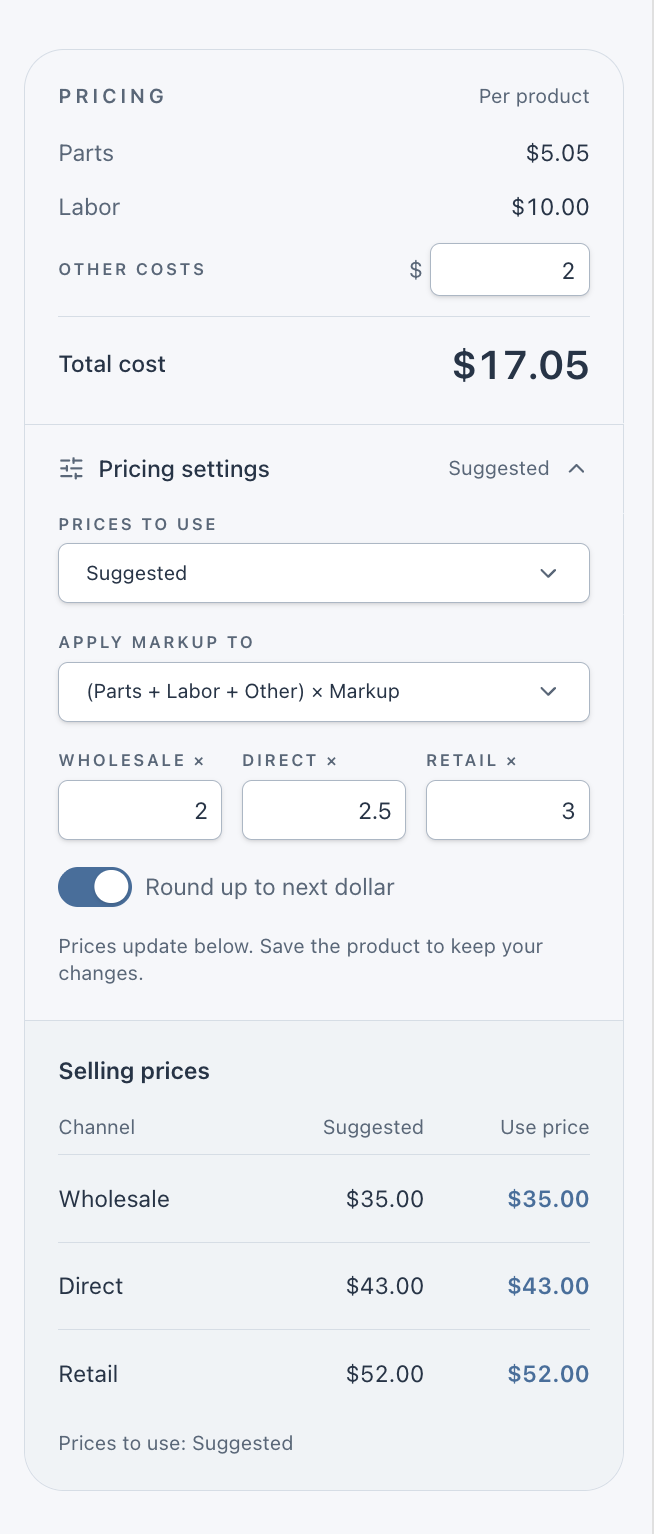
The Pricing panel shows the cost of making one product and its Wholesale, Direct, and Retail selling prices.
Cost per product
Parts and labor are totaled from the entries on this page. Enter Other costs for extras such as packaging, waste materials, and similar expenses.
Total cost = Parts + Labor + Other costs
Add these three amounts to find the cost of making one product.
Prices to use
Expand Pricing settings and choose:
- Suggested: Calculate selling prices from your costs and markups. Prices update as costs change.
- Specify: Enter your own selling prices in the Use price column. These stay fixed when costs change.
Selling prices
Set a separate markup for Wholesale, Direct, and Retail. A markup of 2 means multiply by 2.
Suggested shows the calculated amount. Use price shows the selling price selected by your pricing mode.
Turn on Round up to next dollar to round suggested prices up to a whole dollar. For example, $34.10 becomes $35.00.
Apply markup to
In Pricing settings, use the Apply markup to field to choose how OrangeStock calculates suggested selling prices. The choice applies to the Wholesale, Direct, and Retail markups.
- Parts + Labor + Other, then multiply by Markup
(Parts + Labor + Other) × MarkupChoose this option to multiply the full product cost by the markup.
- Parts × Markup, then add Labor + Other
(Parts × Markup) + Labor + OtherChoose this option to multiply only the parts cost, then add the labor and other costs without marking them up.
- Parts cost $5.05.
- Labor costs $10.00.
- Other costs are $2.00.
The total cost is $17.05 per product.
- Wholesale with a markup of 2
$17.05 × 2 = $34.10With the full-cost formula and rounding on, the selling price is $35.00.
- Direct and Retail
- The same formula gives $43.00 with a Direct markup of 2.5 and $52.00 with a Retail markup of 3, after rounding up.
4Add the parts you need
Use Parts Needed to list the materials required to make one product.
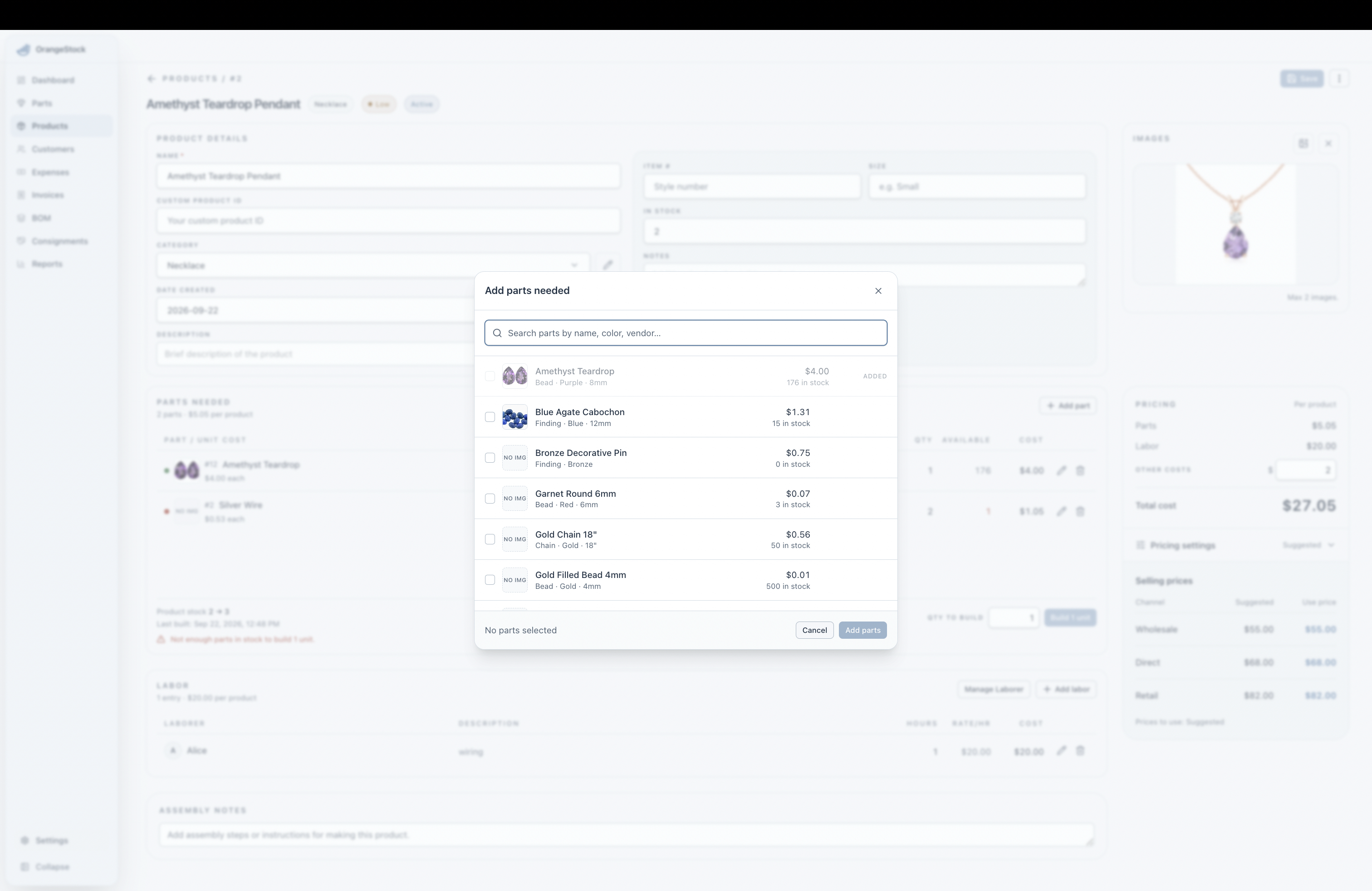
- Choose Add part, then search by name, color, or vendor.
- Select the parts you need. Each selected part shows a quantity field, starting at 1. Enter the amount needed for one product.
- Choose Add parts to save the selection. Parts already in the product are marked Added.
Part cost = Quantity needed × Unit price
Multiply the amount needed by the part’s unit price. OrangeStock adds the cost of each part to calculate the product’s total parts cost.
Use the pencil to change a quantity, or the trash icon to remove a part from this product. Available shows how much of the material is in stock.
Adding parts defines the materials list. To record production, enter Qty to build and choose Build. This uses the required parts and increases finished-product stock. Building is blocked if there are not enough parts.
5Add the time it takes
Use Labor to include the work needed to make one product.
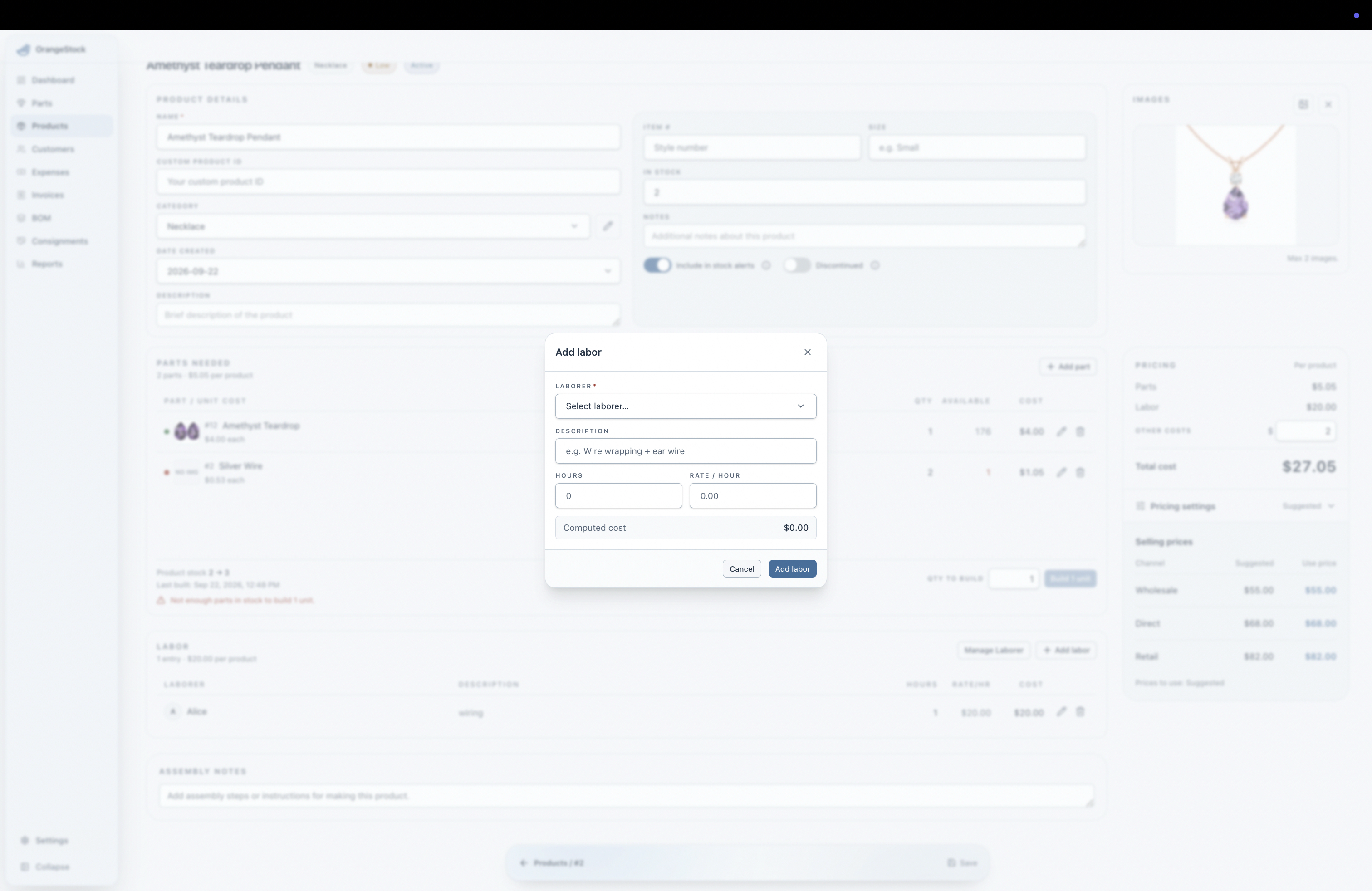
- Choose Add labor and select a laborer. If the list is empty, add someone through Manage Laborer first.
- Add a short description, such as wiring or assembly.
- Enter the Hours needed for one product. Use 0.5 for 30 minutes. The laborer’s hourly rate fills in automatically, and you can adjust it for this entry.
- Check Computed cost, then choose Add labor.
Labor cost = Hours × Rate per hour
Multiply the time spent by the hourly rate.
0.5 hours × $20 per hour = $10
Half an hour at $20 per hour adds $10 to the product’s cost.
Add separate entries for different tasks or people. Use the pencil to edit an entry or the trash icon to remove it. The product’s labor total updates with your changes.
6Manage laborers & hourly rates
Choose Manage Laborer in the Labor section to maintain the people and rates available across your products.
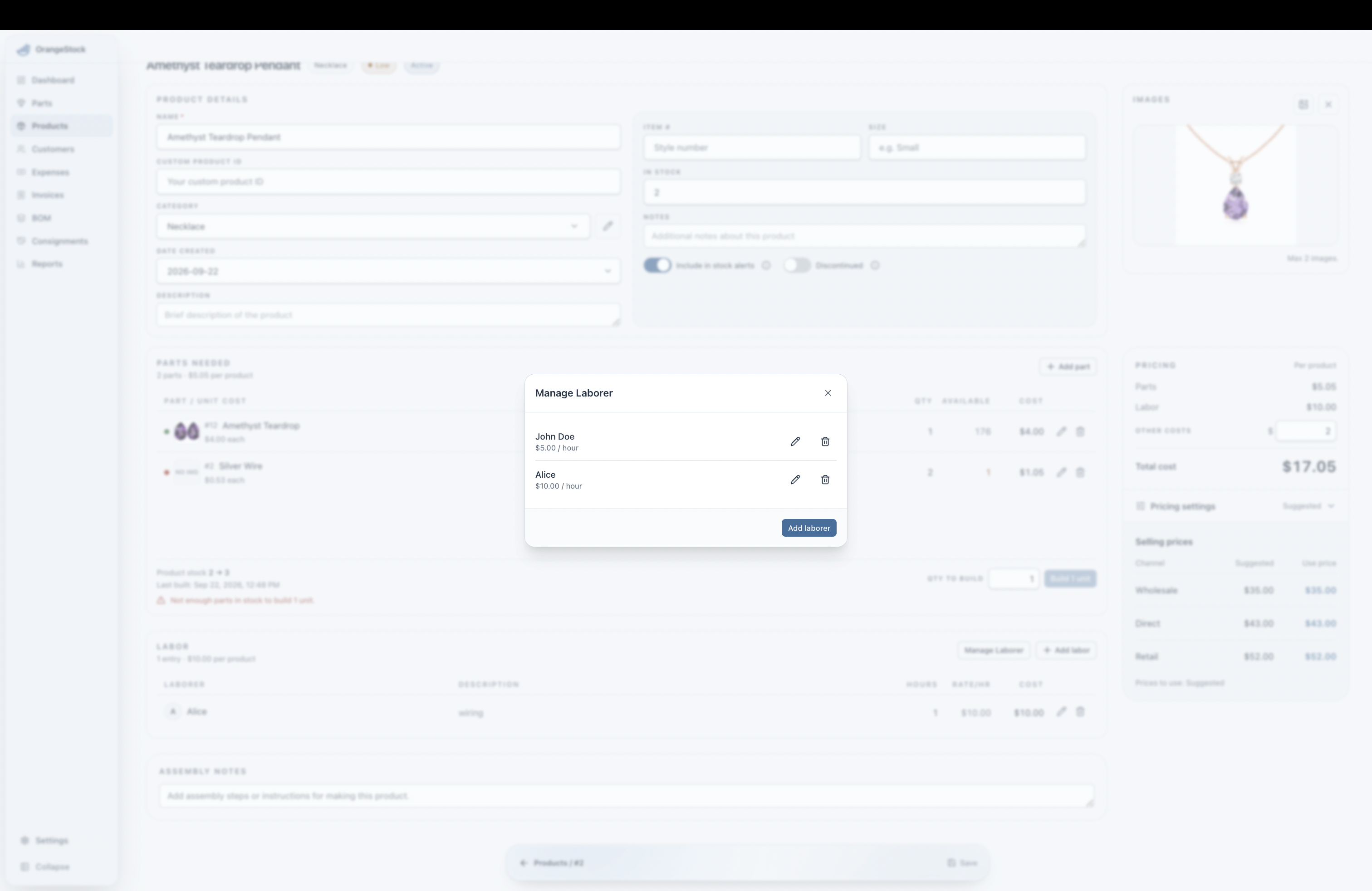
- Add: Choose Add laborer, enter a name and hourly rate, then choose Create laborer.
- Edit: Select the pencil, update the name or hourly rate, then choose Save laborer.
- Delete: Select the trash icon and confirm. This also removes that person’s labor entries from all products and recalculates their costs.
When an hourly rate changes
OrangeStock shows the old and new rates, then asks where to apply the change.
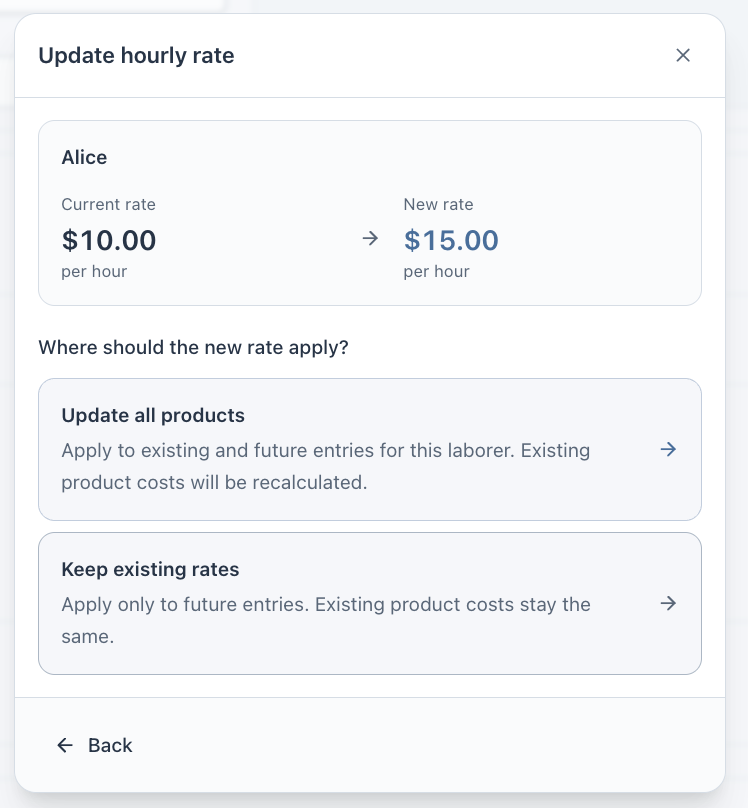
- Update all products
- Use the new rate for this laborer’s existing entries across all products, as well as future entries. Product costs and suggested selling prices recalculate.
- Keep existing rates
- Use the new rate for future entries. Existing labor entries keep their saved rates, so their product costs stay the same.
- Update all products: Every existing entry for Alice, across every product where she is listed, uses the new $15 hourly rate. A one-hour entry changes from $10 to $15, and a two-hour entry changes from $20 to $30. Each affected product’s labor cost is recalculated.
- Keep existing rates: Alice’s existing entries keep their saved hourly rates, so their labor costs stay the same. New entries use her updated $15 hourly rate, which adds $15 for one hour or $30 for two hours.
Selling prices entered with Specify stay fixed, even when labor costs change.