 OrangeStock
THE CONSIGNMENTS GUIDE
Consignment memos
Track products on consignment, then record what sold and what remained unsold.
1See what is out on consignment
Open Consignments to see every memo. The four cards summarize open memos, the number of units out, memos past their expected return date, and the value of open consignments. These totals cover open memos even when the table is searched or filtered.
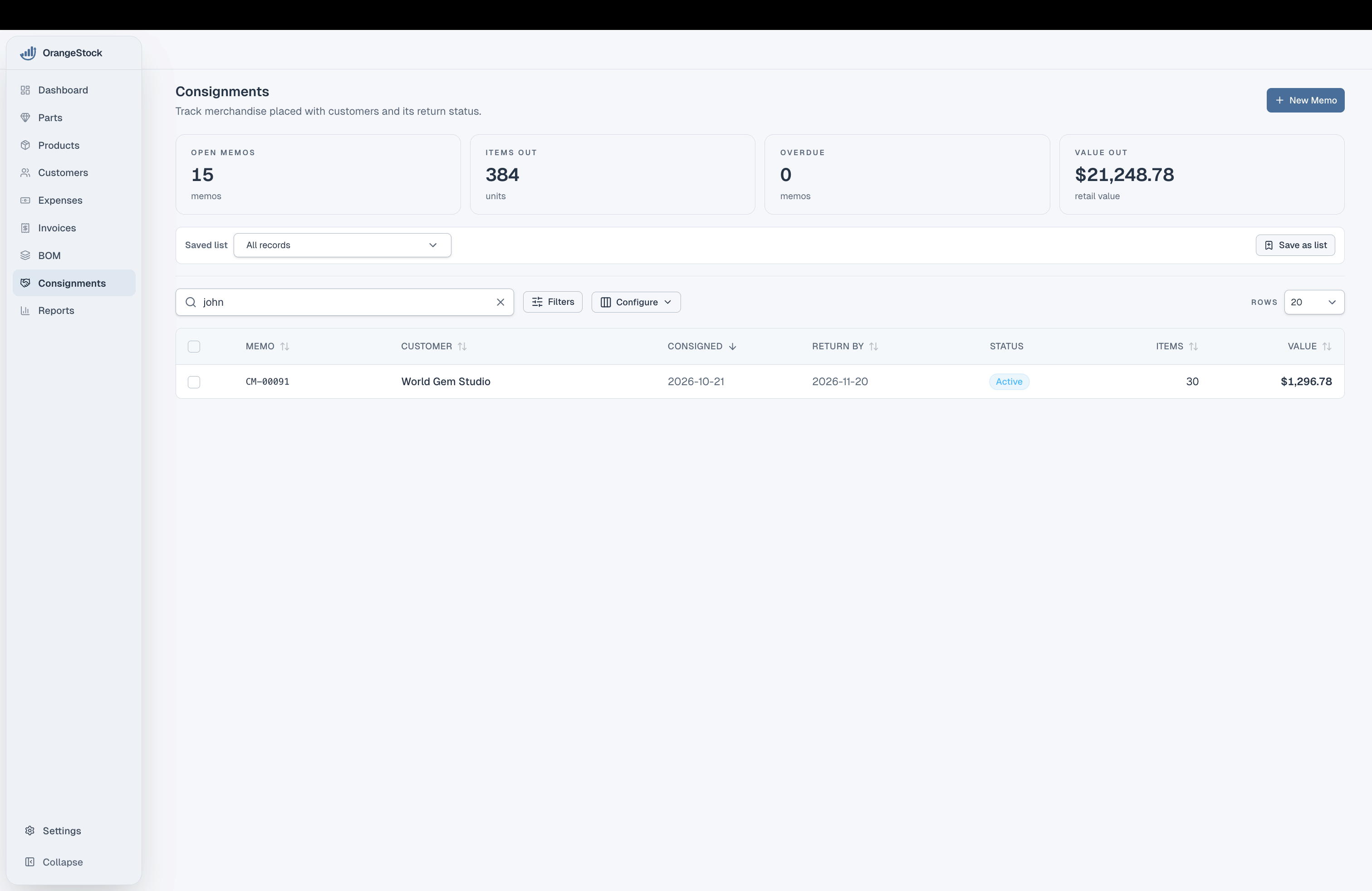
Each row shows the memo number, customer, consignment and return dates, status, item quantity, and value. Select a row to open its memo. An open memo with a past return date is marked overdue.
2Find the memos you need
Search by memo number or ID, customer name or company, shipping method, status, or the memo's internal reference. Search also matches other memo attributes, such as dates, totals, and notes. Enter multiple words to narrow the results.
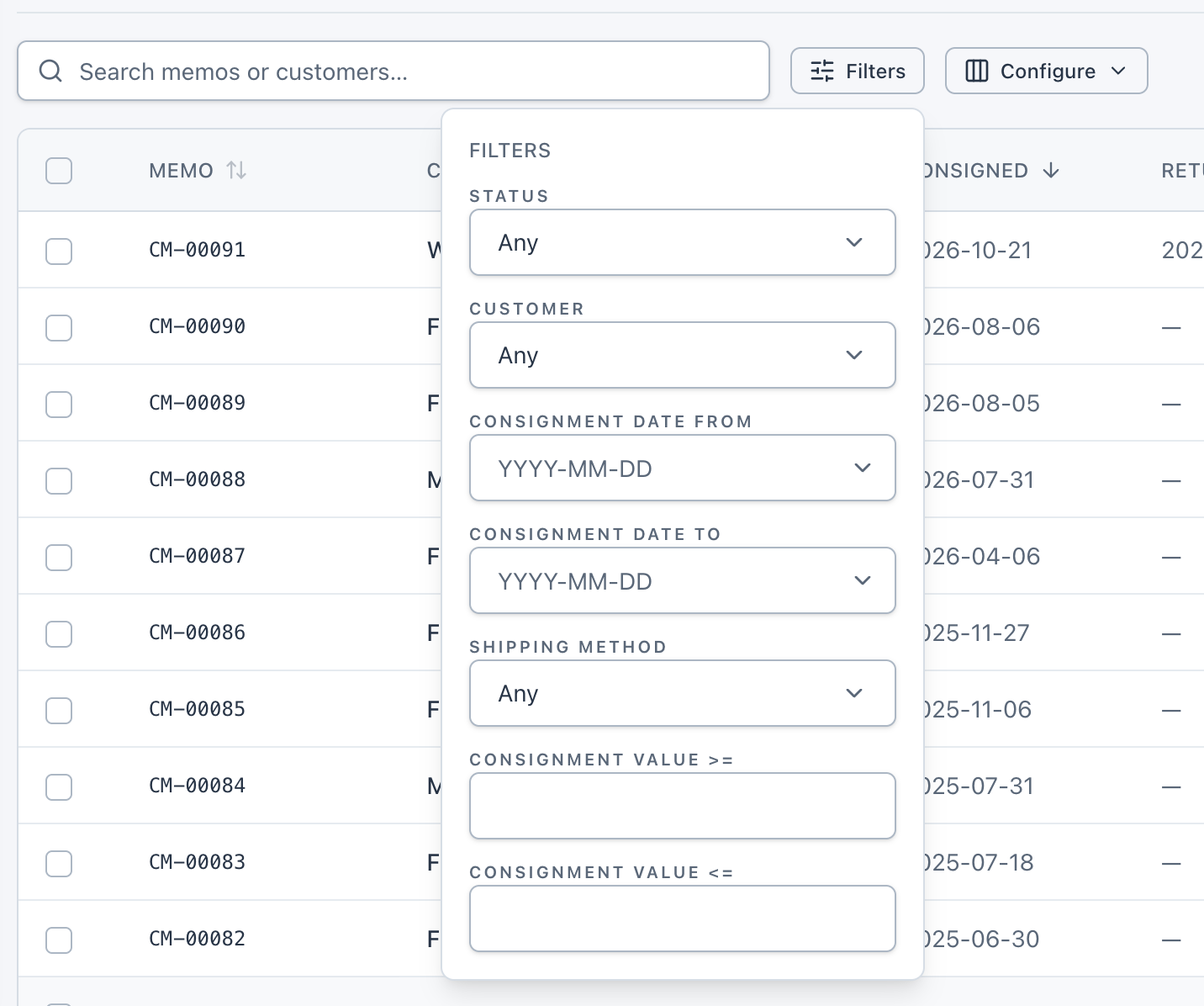
Choose Filters to narrow by status (Open, Overdue, Invoiced, or Fully returned), customer, consignment date from and to, shipping method, or minimum and maximum consignment value. Active filters appear above the table, where you can remove them individually or clear them all.
Use Saved list to return to a saved search, filter, and sort combination. Choose Save as list to keep the current view for later.
 See how saved lists work (opens in a new tab)
3Configure the memo table
Choose Configure to show or hide columns with their checkboxes. Drag a column or use its arrows to change the order. Choose Reset to defaults to restore the original columns and order.
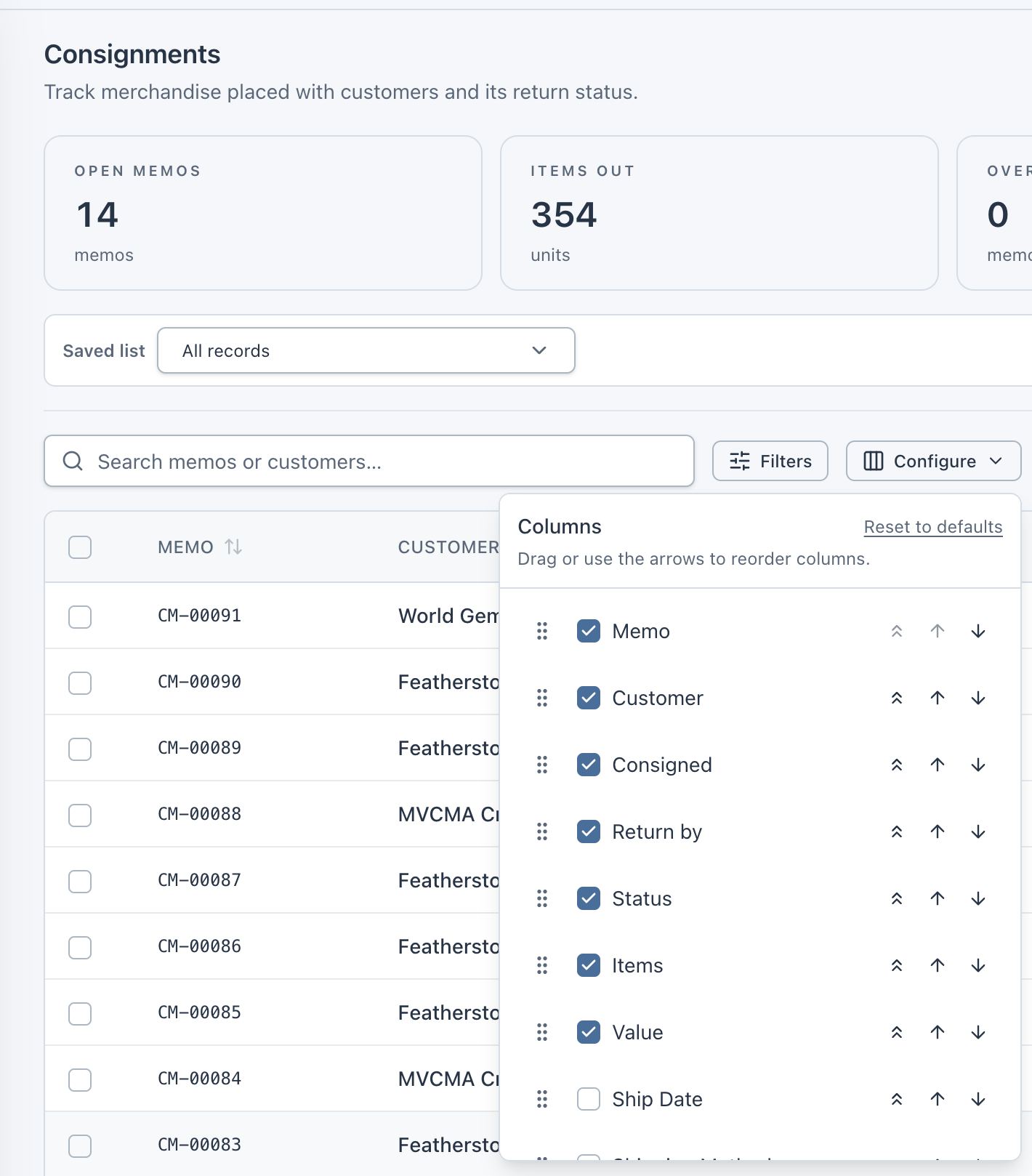
The default view shows Memo, Customer, Consigned, Return by, Status, Items, and Value. You can add columns such as Ship Date, Shipping Method, Invoice ID, Reconciled At, Product Count, Discount, Discount Type, Sales Tax Rate, Subtotal, Discount Total, and Tax Total. Select a column heading to sort the table, and use Rows to change how many memos appear per page.
4Create and fill a memo
Choose New Memo from the Consignments page. Select a customer, then set the consignment date and expected return date. Add an optional internal reference, ship date, and shipping method.
The quantities you add to a consignment memo leave product stock unchanged when you create or save it. Stock is deducted only when you reconcile the memo, and only for quantities marked sold. You can therefore create a memo for an advance order even before the products are in stock.
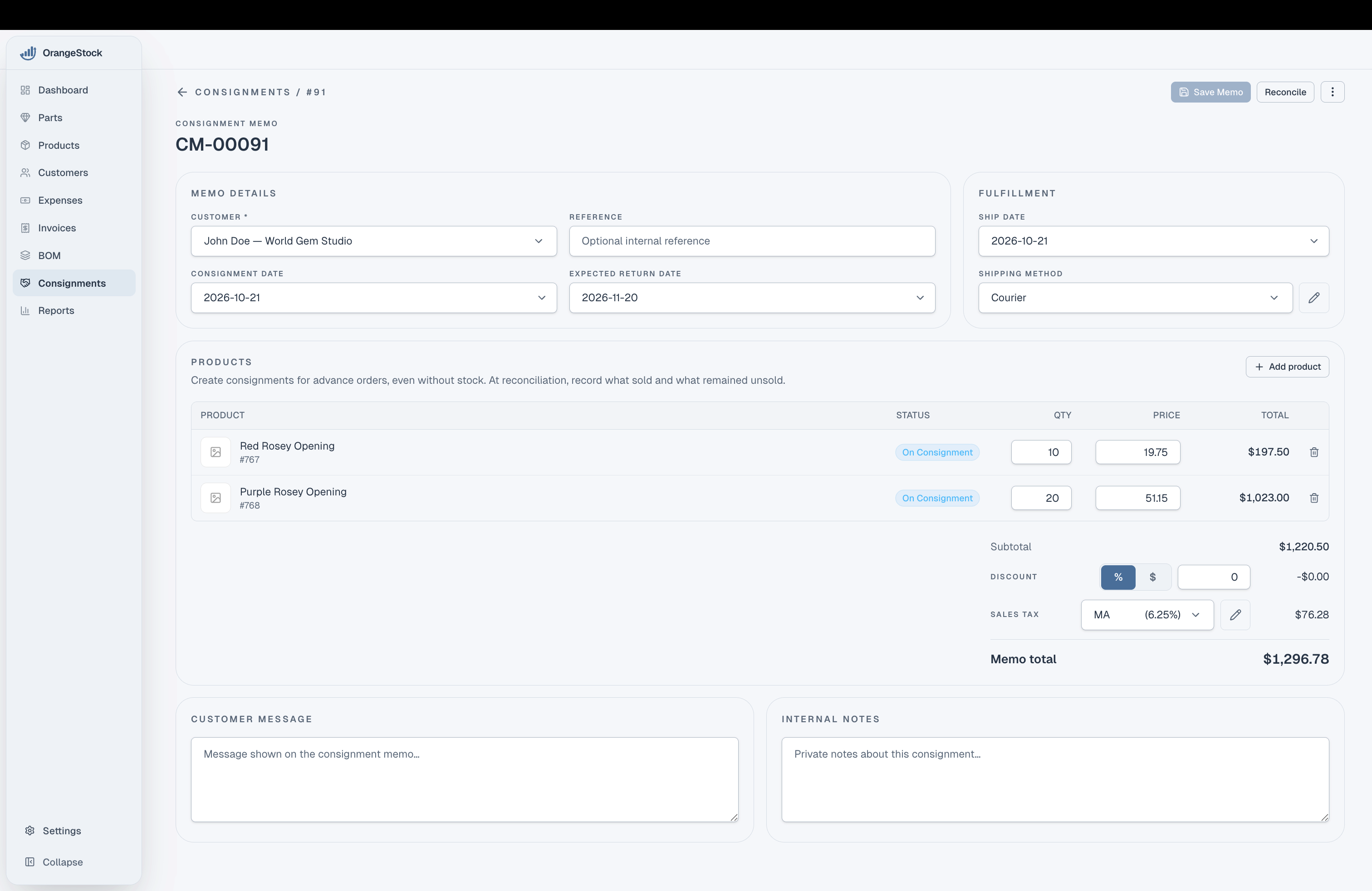
- Choose Add product. Search by product name, item number, or category, then select a product.
- Enter the quantity being consigned and check the unit price. OrangeStock starts with the customer's price tier, but you can change the price for this memo. The line total is quantity multiplied by price.
- Add any other products. Set a percentage or fixed discount and choose the sales tax rate, if applicable. Review the memo total.
- Add a Customer message for the memo or private Internal notes, then choose Create Memo.
5Use the memo actions
On an open memo, Save Memo saves your edits and Reconcile opens the final sales audit. The three-dot menu contains the other actions.
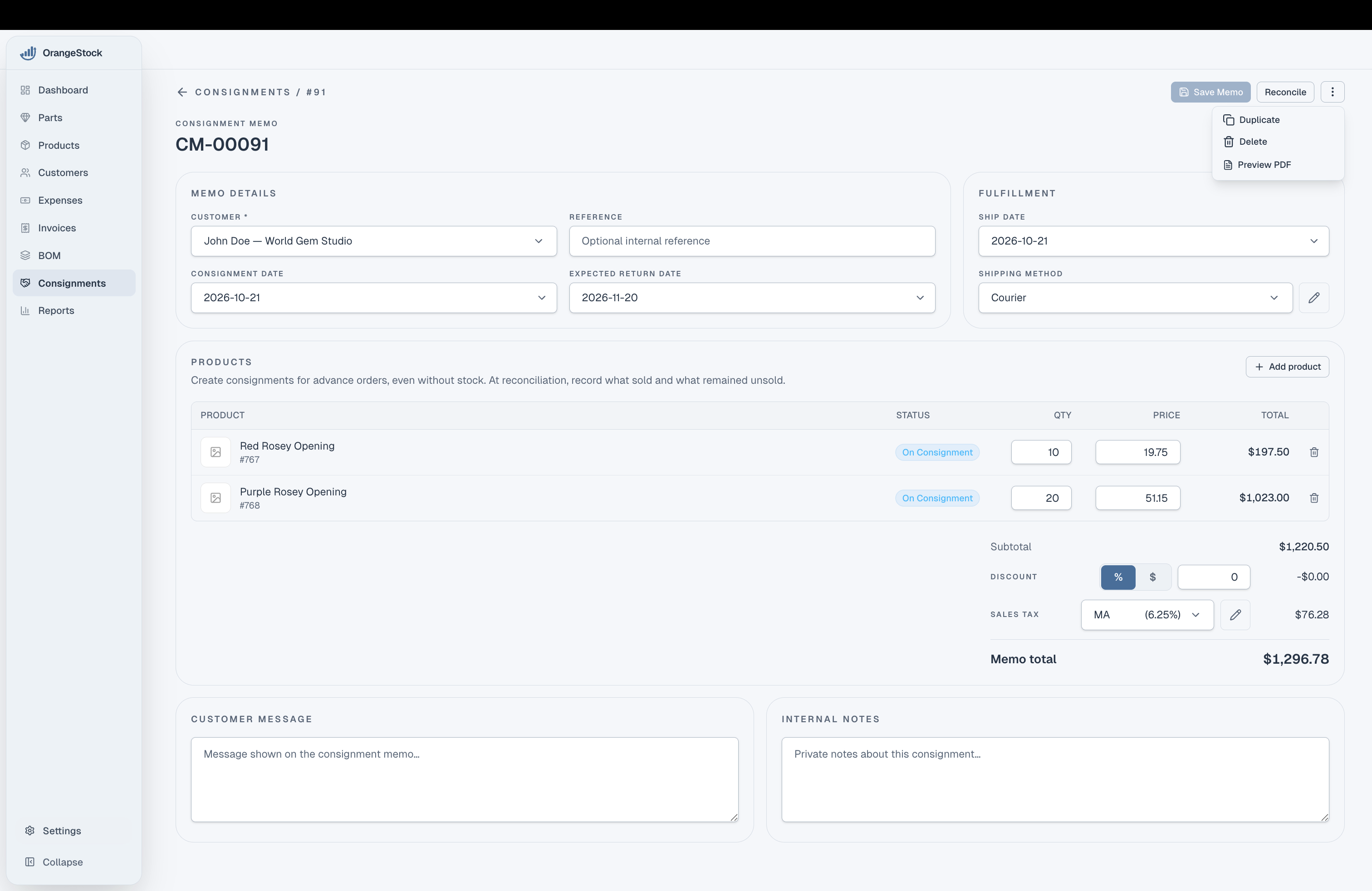
- Duplicate
- Create a separate copy of a saved memo and open the copy.
- Delete
- Delete the memo after confirming the action.
- Preview PDF
- Review the customer-facing consignment memo as a PDF.
Save or discard unsaved changes before duplicating. Reconcile is available while the memo is still open.
6Reconcile the actual sales
When the consignment period ends, open the memo and choose Reconcile. For every product, enter the quantity actually sold. The page calculates the unsold quantity, shows whether each line is fully sold, partially sold, or unsold, and totals the sold units and invoice value.
The original memo did not deduct any product stock. When you complete reconciliation, OrangeStock deducts only the quantities entered as sold. Unsold quantities are not deducted.
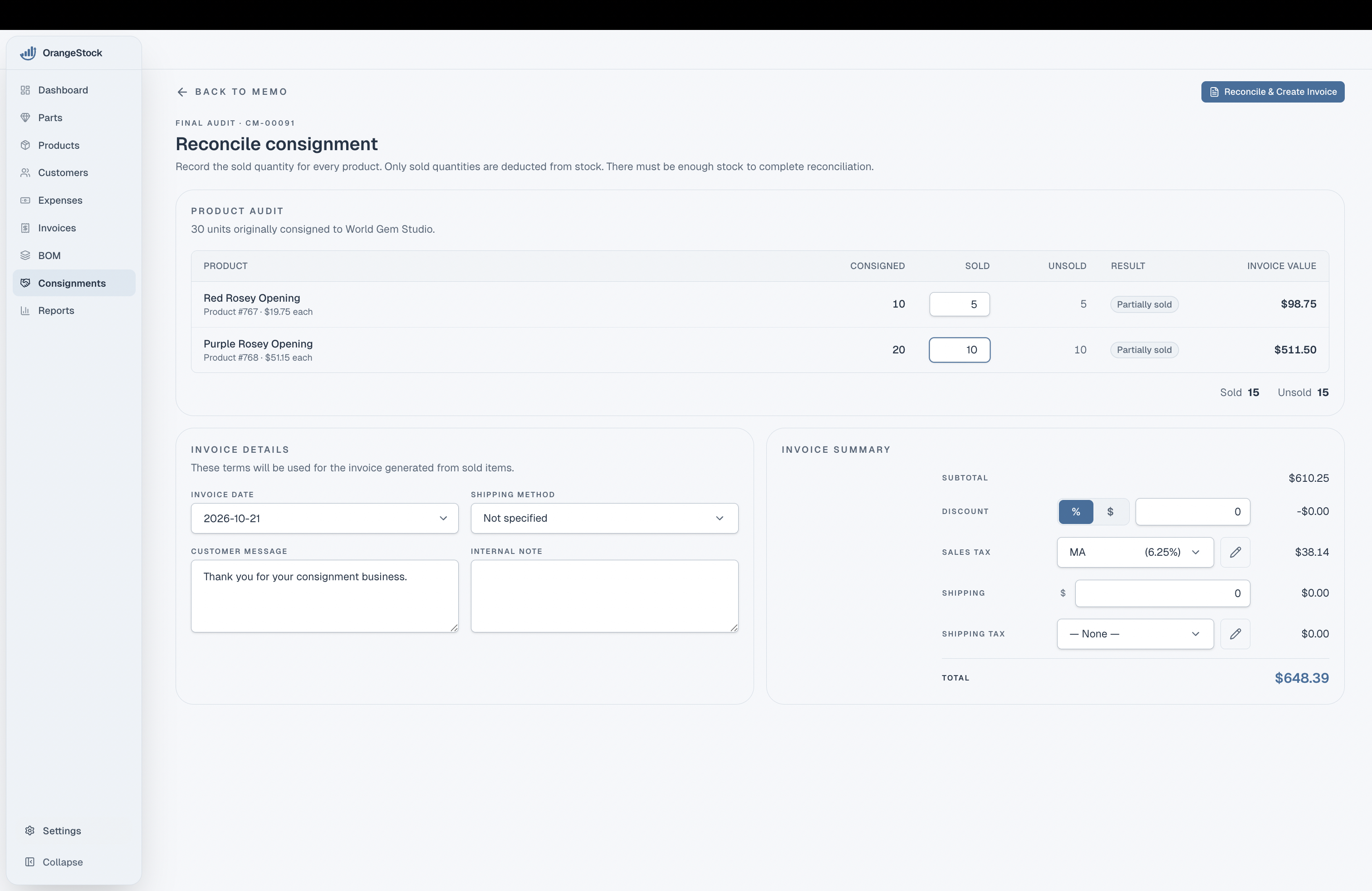
Each sold quantity must be a whole number between zero and the quantity consigned. If there is not enough stock for the sold quantities, reconciliation cannot finish until stock is available.
Complete the invoice details
Set the invoice date and, if needed, the shipping method, customer message, and internal note. Review the sold-item subtotal, percentage or fixed discount, sales tax, shipping charge, and shipping tax. The invoice total is calculated from those entries.
Choose Reconcile & Create Invoice when at least one unit sold. The invoice contains only sold quantities. If none sold, choose Reconcile as Unsold. This does not create an invoice.
7Review the reconciled memo
When items sold, OrangeStock opens the new invoice. Return to the memo to see the outcome for each product. A line may show Partially Sold, Sold, or Unsold. The memo retains its original consigned quantities, prices, and memo total. The new invoice records the sold quantities and their actual total.
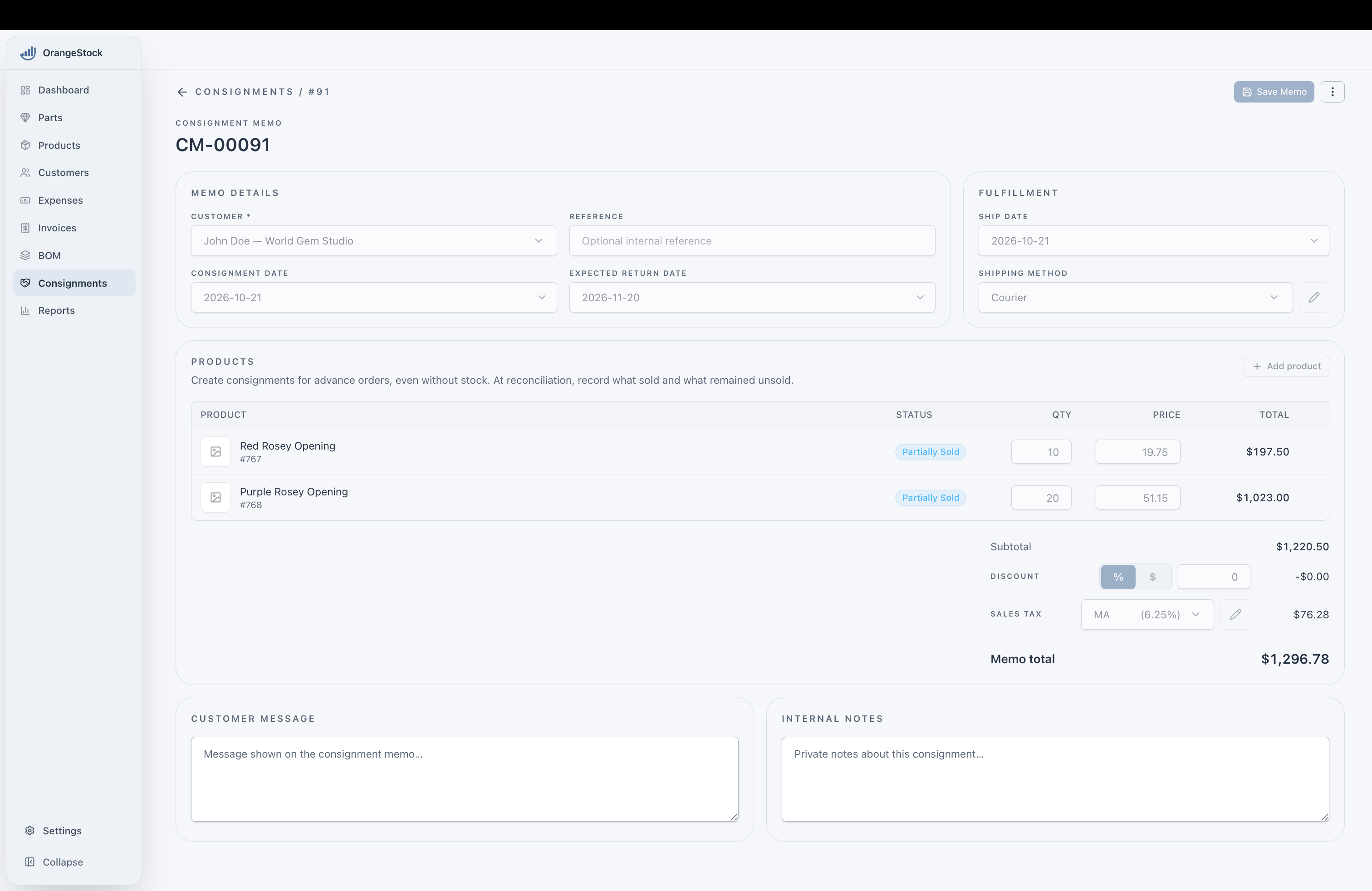
Reconciled memo fields are locked, and the Reconcile action is no longer shown. A memo with sales is marked Invoicedin the list. One with no sales is marked Unsold. If an invoice was created, open the three-dot menu and choose View Invoice to open it again.